
Build, Test and Debug AWS Lambda Container Images Locally with Docker
Container image Lambda functions are great when your dependencies don’t fit a zip package, or when you already build container images for the rest of your stack. The downside is that once your handler runs inside an image, the usual local workflow (node index.js, attach a debugger) doesn’t apply anymore. You need to invoke the function through the Lambda Runtime Interface, and you want the container to use your AWS credentials so it can actually call other services.
This post walks through the full loop: build the image, run it locally, pass credentials, verify them with STS, and shell into the container when something goes wrong. The example uses Node.js 22, but the approach is the same for the other AWS-provided base images.
Why a Container Image?
The standard way of deploying a Lambda function is a zip archive. It’s fast, simple, and well-documented. Container image support is the alternative when:
- Your deployment package would exceed the 250 MB unzipped limit (containers allow up to 10 GB).
- You need native binaries that are awkward to build for the Lambda execution environment.
- Your team already standardizes on Docker for CI/CD and you want a single artifact format.
AWS publishes base images that include the language runtime, the runtime interface client, and the runtime interface emulator (RIE). The RIE is what makes local testing possible. It exposes the same HTTP API that Lambda uses in production, so your function is invoked the same way it would be in the cloud.
The Dockerfile and Handler
The base image already handles the wiring. Your Dockerfile just copies the code and sets the handler:
FROM public.ecr.aws/lambda/nodejs:22
WORKDIR ${LAMBDA_TASK_ROOT}
COPY index.js ./index.js
CMD ["index.handler"]
LAMBDA_TASK_ROOT is a Lambda-defined environment variable that points to /var/task. That’s the directory where the runtime looks for your handler.
For the handler, write something useful for debugging right away: a function that proves which AWS identity the container is using. The Node.js 22 base image already includes the AWS SDK v3, so no npm install is needed:
const { STSClient, GetCallerIdentityCommand } = require('@aws-sdk/client-sts');

const sts = new STSClient({});

exports.handler = async (event) => {
  const identity = await sts.send(new GetCallerIdentityCommand({}));
  return {
    statusCode: 200,
    body: {
      account: identity.Account,
      arn: identity.Arn,
      userId: identity.UserId,
      event,
    },
  };
};
This is the equivalent of running aws sts get-caller-identity from inside the container. See the STS API reference for the response details. If your credentials are set up correctly, you get back the account ID and the assumed-role ARN. If not, you get a clear error message that points you at the problem.
Build and Run
Build the image for the Lambda runtime architecture. The --provenance=false flag is required for Lambda compatibility, as noted in the Node.js Lambda image docs:
docker buildx build --platform linux/amd64 --provenance=false \
  -t aws-lambda-docker-test:test .
Start the container with the RIE listening on port 9000. We pass AWS_REGION here so the SDK gets past region resolution and lets us focus on the credential problem in the next section. Without it, the first error you’d see is Region is missing, which is unrelated to what we actually care about:
docker run --platform linux/amd64 -p 9000:8080 \
  -e AWS_REGION=eu-central-1 \
  aws-lambda-docker-test:test
This runs in the foreground so you can watch the runtime logs. Open a second terminal window and invoke the function with curl against the RIE endpoint:
curl "http://localhost:9000/2015-03-31/functions/function/invocations" \
  -d '{"payload":"hello world!"}'
At this point the STS call will fail because no credentials are present. The response body will contain something like CredentialsProviderError: Could not load credentials from any providers, which is the AWS SDK v3 telling you it couldn’t find a static key, an SSO token, an instance profile, or anything else. That’s expected. Let’s fix it.
Passing AWS Credentials
There are two reasonable ways to give the container access to your AWS account. Both work; pick the one that fits your workflow.
Note: This is for local testing and debugging on your own machine only. Do not bake credentials into the image. When the function runs in AWS, it picks up short-lived credentials automatically through its execution role.
Option 1: Export Credentials as Environment Variables
The most general approach is to resolve credentials on the host and inject them as env vars. The AWS CLI has a configure export-credentials command that works the same way for long-lived IAM user credentials, assumed-role profiles, and AWS IAM Identity Center (formerly AWS SSO) sessions:
eval "$(aws configure export-credentials --profile my-profile --format env)"

docker run --platform linux/amd64 -p 9000:8080 \
  -e AWS_ACCESS_KEY_ID \
  -e AWS_SECRET_ACCESS_KEY \
  -e AWS_SESSION_TOKEN \
  -e AWS_REGION=eu-central-1 \
  aws-lambda-docker-test:test
The AWS SDK inside the container picks these up automatically. For IAM user credentials there’s no session token, so AWS_SESSION_TOKEN is simply unset on the host and Docker passes nothing for it. For temporary credentials (assumed roles, federated tokens, SSO), all three variables are populated.
Note: Session tokens are short-lived, typically 8 to 12 hours. When it expires, update them on your host machine, e.g. aws sso login --profile my-profile if you’re using AWS SSO and then re-run the eval "$(aws configure export-credentials ...)" line, and restart the container. You might need to restart your container as well. (PS: Working with AWS SSO? You might be interested in running scripts across multiple AWS accounts).
Option 2: Mount ~/.aws Into the Container
You can mount the host’s AWS config directory into the container instead. The container then reads the same profile files you use on the host, so switching between profiles is a matter of changing AWS_PROFILE and nothing else. This works for static IAM user credentials, assume-role chains defined in ~/.aws/config, and SSO profiles:
docker run --platform linux/amd64 -p 9000:8080 \
  -v ~/.aws:/root/.aws:ro \
  -e AWS_PROFILE=my-profile \
  -e AWS_REGION=eu-central-1 \
  aws-lambda-docker-test:test
A few notes:
- The mount target is
/root/.awsbecause the container runs as root by default (the Dockerfile has noUSERinstruction), and the AWS SDK derives the credentials file, config file, and SSO token cache locations from$HOME. For the root user that’s/root. In production, Lambda runs your container as a least-privileged non-root user, so$HOMEand the writable filesystem look different from what you see locally. - Mount read-only (
:ro) so a buggy function can’t corrupt your real credentials. - The container reads the cached SSO token but cannot refresh it. When the session expires, open a separate terminal on the host and run
aws sso login --profile my-profile. The mount picks up the refreshed token file on the next handler invocation, so you usually don’t need to restart the container.
For one-off debugging Option 1 is usually simpler. Option 2 wins when you frequently switch between profiles or want the container to behave the same as your host shell.
Verifying It Works
With credentials in place, hit the endpoint again:
curl "http://localhost:9000/2015-03-31/functions/function/invocations" \
  -d '{"payload":"hello world!"}'
You should now get back the account ID, the assumed-role ARN, and the original event. That confirms three things at once: the image builds correctly, the runtime invokes your handler, and the AWS SDK inside the container can authenticate against AWS.
Shelling Into the Container
When something goes wrong (a missing file, the wrong handler path, a dependency that didn’t get copied), the fastest fix is usually to look around inside the running container:
docker ps                                       # find the container id
docker exec -it <container-id> /bin/bash
From there you can inspect ${LAMBDA_TASK_ROOT}, run printenv to see which env vars actually arrived, or invoke the handler manually with node to bypass the runtime. Once the credential plumbing is sorted, this loop of small change, rebuild, re-run, and exec is what makes container Lambdas pleasant to iterate on.
Conclusion
Local testing of container image Lambda functions really comes down to three moving parts: the AWS base image (which brings the RIE), an HTTP call to the emulator endpoint, and credentials passed in via env vars or a mounted ~/.aws. Adding a tiny STS handler gives you a quick sanity check that everything is set up correctly before you go anywhere near a real deployment.
If you’re new to AWS Lambda, I’d suggest reading 5 things to consider when writing a Lambda function and the two-part Going Serverless guide next. And once your function actually talks to other services, you’ll probably want to think about caching in AWS Lambda too.
For deeper reference material, the AWS docs on creating Lambda container images and the AWS Lambda Runtime Interface Emulator on GitHub are both worth bookmarking.

Related Articles
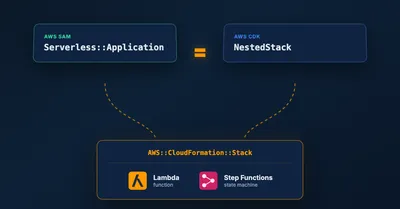
Migrating a SAM CfnApplication to a CDK NestedStack Without Recreating Resources
How to replace an embedded SAM CfnApplication with a native CDK NestedStack in place, keeping the underlying Lambda and Step Functions resources and their outputs intact.
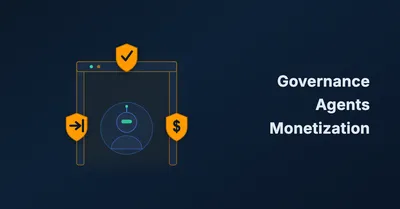
Serverless and AI on AWS in 2026: Governing Agents and the New Agent Economy
Part two of the 2026 serverless AI tour: Bedrock AgentCore for production governance, Strands Agents, the AWS Serverless agent plugin, and WAF's new AI traffic monetization.
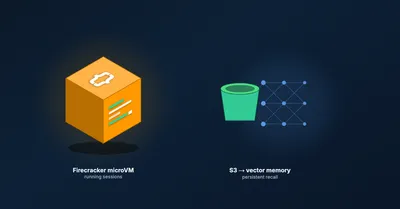
Serverless and AI on AWS in 2026: Lambda Gets Hands, S3 Gets Memory
A practitioner's tour of how AWS rebuilt serverless compute and storage for AI agents in 2026: Lambda MicroVMs, Durable Functions, S3 Vectors, S3 Annotations, and managed RAG.
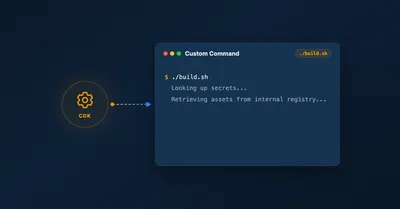
Run Custom Build Commands During CDK Synthesis with Code.fromCustomCommand
Learn how to use CDK's Code.fromCustomCommand to run custom build scripts, download artifacts, or use non-standard toolchains like Rust or Go during CDK synthesis.