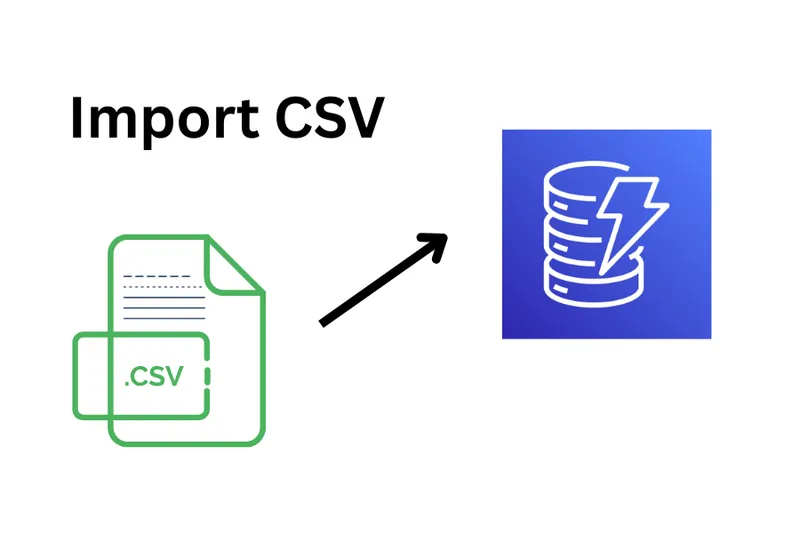
Importing DynamoDB Items from a CSV File Using the AWS CLI
If you’ve exported items from a DynamoDB table into a CSV file and now want to import them back, you’ll quickly realize that AWS doesn’t offer a direct CSV import feature for DynamoDB. While you can use tools like AWS Glue or write custom applications, sometimes all you need is a small CLI-based solution.
In this post, I’ll walk you through how to use a bash script and the AWS CLI to re-import your data into DynamoDB.
🧪 Problem Context
I had a set of items in a DynamoDB table that I exported to a CSV file for backup and inspection. Each item had string fields with the following names:
PK(Partition Key)SK(Sort Key)createdAtdata
The goal was to re-import these items into an existing DynamoDB table using the AWS CLI.
📁 Sample CSV File
Here’s a sample of what the data.csv looked like:
PK,SK,createdAt,data
USER#123,SESSION#1,2025-05-06T12:00:00Z,Some data string
USER#124,SESSION#2,2025-05-06T13:00:00Z,Another string
All values are strings, and the file includes a header row.
🛠️ The Script
Here’s a Bash script that reads each line of the CSV file and inserts the corresponding item into the DynamoDB table using the AWS CLI. It prints the result of each insertion to make it easier to debug or confirm progress.
#!/bin/bash

TABLE_NAME="YourTableName"
CSV_FILE="data.csv"

awk 'NR > 1' "$CSV_FILE" | while IFS=',' read -r PK SK createdAt data; do
  echo "Putting item: PK=$PK, SK=$SK"

  result=$(aws dynamodb put-item \
    --table-name "$TABLE_NAME" \
    --item "{
      \"PK\": {\"S\": \"$PK\"},
      \"SK\": {\"S\": \"$SK\"},
      \"createdAt\": {\"S\": \"$createdAt\"},
      \"data\": {\"S\": \"$data\"}
    }" 2>&1)

  if [ $? -eq 0 ]; then
    echo "✅ Successfully inserted PK=$PK"
  else
    echo "❌ Failed to insert PK=$PK"
    echo "Error: $result"
  fi

  echo "----------------------------------------"
done
Replace YourTableName with the name of your DynamoDB table.
⚠️ Common Pitfall
The exported CSV file might not contain a new line at the end.
Therefore, the last line of the CSV might not be processed by the script.
awk should handle this edge case but if you’re using a different tool, you can fix this by adding a new line to the end of the file:
echo >> data.csv🚀 Ready to Go
This approach works great for small-to-medium CSVs where you don’t want to spin up more complex tooling. Just be mindful of CSV quirks and escaping needs (e.g., quoted strings or commas within fields), and you’ll have your data back in DynamoDB in no time.
For larger imports, consider batching writes using batch-write-item, or using AWS Lambda for managed processing. If you’re building applications that interact with DynamoDB, check out my guide on testing DynamoDB operations locally with DynamoDB Local and Testcontainers.

Related Articles
Using DynamoDB Local and Testcontainers in Java within Bitbucket Pipelines
Automate DynamoDB testing with Testcontainers and DynamoDB Local in Bitbucket Pipelines. Complete setup guide including Ryuk configuration and AWS SDK settings.

Caching in AWS Lambda
Improve AWS Lambda performance and reduce costs with caching strategies. Compare simple caching, DynamoDB cache, Redis, and ElastiCache for serverless functions.
Updating Tags on an OpenSearch Serverless Collection Replaces the Resource
AWS::OpenSearchServerless::Collection requires replacement when you update tags — a surprising CloudFormation behavior that can break cross-account setups and cause downtime.

Cross-Account Data Ingestion into OpenSearch Serverless with AWS CDK
How to set up OpenSearch Serverless for cross-account data ingestion using AWS CDK, VPC endpoints, and IAM role assumption — filling the gaps in AWS documentation.